Author Archives: shringtech

Never lose a Word document again

Never lose a Word document again

Be honest, how many times have you lost a Word document because you forgot to hit “Save”? 

We’ve all been there. 

The power cuts out, your laptop crashes, or you just close the window too fast… and hours of work vanish in an instant.

Well, Microsoft’s decided that enough is enough. From now on, new Word documents will automatically save straight to your OneDrive cloud storage. Autosave will be turned on by default.

That means your work is backed up instantly. And you can pick up where you left off from any device. 

Accidentally close the file? No problem, it’s sitting safely in the cloud. 

For anyone who’s ever lost an important report, proposal, or invoice, that sounds like a dream come true. Right?

But not everyone’s cheering just yet.

Some people aren’t comfortable with every new document automatically being uploaded to the cloud. They’d rather decide for themselves where a file should live. Especially if it contains sensitive information. 

There’s also the question of privacy. 

While Microsoft says your files are secure and only accessible to you, some people simply prefer keeping their work stored locally, where they feel more in control.

In fairness, Microsoft isn’t locking you in. You can turn this feature off and go back to saving files manually if you prefer. 

But for many, this change could slip by unnoticed. Word will just quietly back everything up for you without asking.

It’s a big shift, and it says a lot about where Microsoft’s heading. The company wants to make OneDrive the central hub for your files, and with new Copilot AI features coming to it, that makes sense. 

Soon you’ll be able to ask Copilot to find, summarize, or even edit your documents directly from OneDrive. There will be no need to dig through folders or filenames.

So, is this update a terrible idea or a great one? 

It depends on how you like to work. 

If you value simplicity, peace of mind, and automatic backups, it’s a fantastic move. But if you prefer a little more control and privacy, it might feel like Word’s making decisions for you.

Either way, one thing’s certain: The days of losing your unsaved masterpiece are numbered.

Copilot brings Microsoft and Google together

Copilot brings Microsoft and Google together

Ever found yourself juggling between Gmail, Outlook, and a dozen browser tabs just to find one email or check a meeting time?

It’s the kind of digital chaos most of us have learned to live with… until now.

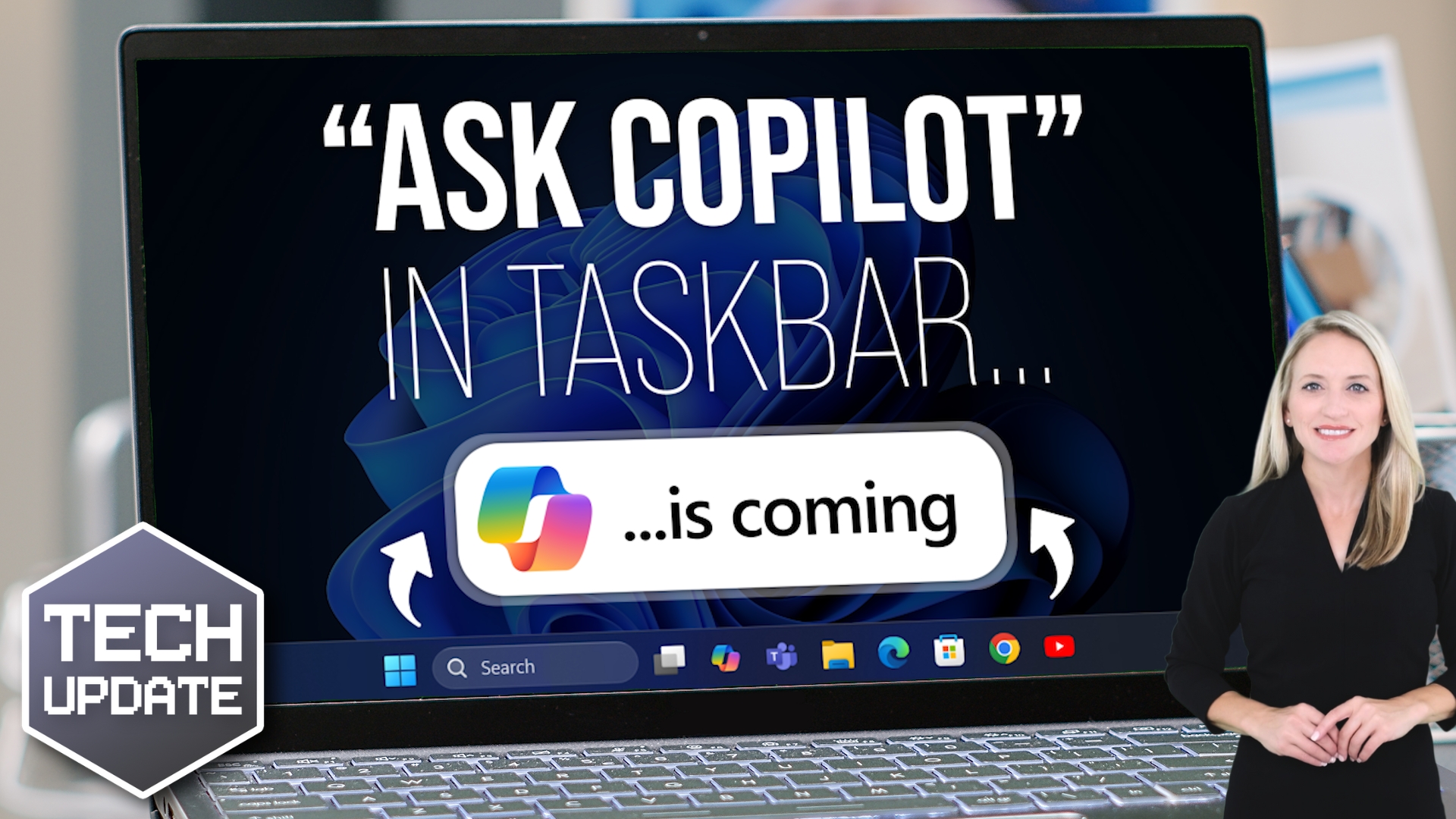
Microsoft’s AI assistant, Copilot, is about to make life a lot easier. Thanks to a new Windows update, Copilot can now connect directly to your Gmail and Google Calendar, as well as your Microsoft accounts like Outlook and OneDrive.

That means, if you choose to turn it on, Copilot can search across both ecosystems to help you get things done faster.

Can’t remember when you last emailed a client? Just ask, “When did I last speak to Sarah?” Copilot will find it. Even if that message was buried in Gmail.

Need to plan next week’s schedule? It can check both your Outlook and Google calendars so you don’t double-book yourself.

Of course, you’re always in control. Copilot only accesses what you give it permission to. If you’d rather keep your accounts separate, that’s perfectly fine. It’ll keep working just as it always has within the Microsoft tools you already use.

But if you do choose to connect your Google account, it could be a real time saver. It’s one of the first times we’ve seen Microsoft’s technology work with Google’s instead of competing against it. If you mix and match apps from both sides, you’ll know that’s a big deal.

Away from searching and scheduling, Copilot is becoming a powerful creation tool. You can ask it to turn a few notes into a Word document, build a PowerPoint presentation, or even generate a polished PDF, all without opening a single extra app.

Longer responses from Copilot now include an “export” button so you can instantly send its output into the format you need.

The update has rolled out to Windows Insiders (Microsoft’s group of early testers) via the Microsoft Store, but it won’t stay there for long. This is clearly the direction Microsoft’s heading: Fewer apps, fewer steps, and more time to focus on actual work.

There is, however, one big question hanging over all of this. How much do you trust your AI assistant?

Linking Copilot to Gmail and your calendar means giving it access to some very personal data. Microsoft stresses that you stay in charge and your data isn’t used to train its AI, but it’s still worth thinking about before you click connect.

For many, the convenience outweighs the worry. It’s great to see we’re heading towards a world where your tools finally work together, not against each other.

AI audio translation previews in Microsoft Edge

AI audio translation previews in Microsoft Edge

Language barriers have always limited what we can get out of online content.

Training videos, webinars, or product launches are only useful if you understand the language they’re in.

But that could soon change.

Microsoft is testing a new AI-powered audio translation feature in its Edge browser.

It can translate the spoken words in a video into another language in real time, swapping the original audio for a translated version.

Now, it’s limited to just a few languages. English, Spanish, and Korean. But it gives us a glimpse of how AI could make global content much more accessible.

Here’s how it works…

Once enabled in Edge’s settings, a small floating bar appears on supported sites (YouTube is one example).

When you start a video in another language, Edge automatically generates a translated audio track, muting the original.

The result is that you hear the video in your chosen language almost instantly.

There are some limitations right now though.

The feature requires a powerful computer. At least 12 GB of memory and a modern processor. It’s not going to run well on low-spec devices.

Accuracy can also vary, with occasional hiccups like extra voices or imperfect phrasing.

But given that this is still a preview, it’s impressive progress.

The potential here is huge.

International training materials, partner presentations, or even industry insights in other languages could become immediately useful without waiting for subtitles or professional translations.

It opens doors to faster learning, wider collaboration, and easier access to knowledge from around the world.

Real-time translation could help businesses think and work more globally than ever before.

If you’d like to learn more about the other productivity tools Microsoft offers, get in touch.

New: You decide what Copilot remembers

New: You decide what Copilot remembers

How much do you want AI to remember about you?

That’s the question Microsoft’s beginning to answer with a big new update to Copilot.

Up until now, Copilot has been useful for quick tasks. Summarizing text, drafting emails, or answering questions. But it doesn’t really hold onto much about you.

Every time you start fresh, it’s almost like meeting it for the first time. That limits how “personal” it can ever feel.

But now that’s changing.

Microsoft is adding memory management to Copilot. That means you’ll have more control over what it remembers.

You can explicitly tell it to “remember this”, and in upcoming updates you’ll get a full memory management page where you can see exactly what’s stored.

Then you can either edit or delete details whenever you like.

In other words, Copilot can build up useful context about you and your business, but you stay firmly in control of what it keeps and what it forgets.

Why does this matter?

Think about the time saved if Copilot could remember the way your team writes reports, the names of your key clients, or the formats you prefer for proposals.

Instead of re-explaining the same information repeatedly, you could just get on with the work.

And if something changes, say a client’s details or your preferred style, you can update or clear that memory instantly.

There’s another important piece to this update too: Connectors.

Copilot can already link to OneDrive. Soon it will be able to connect to Google Drive as well.

That means you’ll be able to ask Copilot to fetch documents, summarize a folder of files, or even surface insights from stored data without opening each file manually.

Over time, more services are expected to be added, giving businesses a much more joined-up way to work with their information.

These features are rolling out across the web, Windows 11, and mobile devices, with some likely to be free and others possibly reserved for Copilot’s paid tier in the future.

Copilot is moving towards being a smarter, more personal assistant that learns from you, while keeping you in the driver’s seat.

And that balance could be key.

The more Copilot remembers, the more useful it becomes. But the fact that you get to decide what it keeps means you can take advantage of that power without sacrificing control.

If you’d like to see what Copilot could do for your business, get in touch.

Beware fake apps containing malware

Beware fake apps containing malware

When you download a new app for work, how sure are you that it’s really the genuine thing?

A new wave of cyberattacks is making that question more important than ever.

Hackers are creating fake versions of popular apps. Things like WhatsApp, Chrome, and even secure messaging platforms such as Signal or Telegram.

On the surface these look exactly like the real deal. But hidden inside is malware designed to spy on you, steal data, or even give attackers control of your device.

The trick that makes this so dangerous is something called SEO poisoning.

In simple terms, attackers use search engine optimization (SEO) techniques to push their fake websites to the very top of search results. So even if you’re usually careful online, you could still end up on a malicious site without realizing it.

From there, downloading what looks like a safe installer could also install hidden software that logs your keystrokes, monitors your clipboard, captures your screen, and even bypasses security tools.

The risks are obvious. One mistaken download by a staff member could expose sensitive company data, compromise client communications, or open the door to further attacks.

And because these fake apps sometimes also install the real version alongside the malicious one, people often have no idea anything is wrong until it’s too late.

So how can you stay safe?

The simplest step is to only ever download apps from official app stores or directly from a company’s website you’ve typed in yourself.

Encourage staff to double-check web addresses before clicking on download links. They should look for subtle misspellings or odd characters that give away a fake.

And make sure your security software is up to date so it can help spot threats if something slips through.

Most importantly, don’t forget that awareness is one of your strongest defenses.

Talk to your employees about scams like these and keep them updated on new threats. A quick reminder in a team meeting or an internal email could be enough to stop someone making an expensive mistake.

Fake apps aren’t going away any time soon. But by staying alert and building good security habits across your business, you can make sure your people, and your data, stay safe.

If you need help training your team, or checking your security is up to task, get in touch.

80% of malware is powered by AI

80% of malware is powered by AI

What if I told you that most of the cyberattacks happening right now aren’t being run by people at all, but by artificial intelligence?

That’s the reality of where we are today.

According to new research, 80% of ransomware attacks are now powered by AI. That’s four out of every five.

And it’s not just ransomware. AI is increasingly being used to:

  • Create more convincing phishing emails (messages designed to trick you into clicking a link or handing over sensitive details)
  • Crack passwords at lightning speed
  • Bypass CAPTCHAs (those little puzzles you solve online to prove you’re human)
  • Generate fake customer service calls using deepfakes (AI-generated audio or video that mimics a real person’s voice or face)

So why does this matter for SMBs?

The problem is speed and scale. Attackers using AI can try thousands of ways to break into a system in the time it would take a human to attempt just one.

And while a business needs to defend every possible entry point, an attacker only needs to succeed once.

That imbalance is what makes this such a big threat.

Traditional approaches to stopping malware, spotting it, removing it, and patching systems, are struggling to keep up. AI-driven attacks evolve faster than human teams can respond. That means businesses need to think differently about their defenses. It’s no longer enough to rely only on antivirus software or occasional updates.

The good news is that AI is also being used on the defensive side.

Security systems that monitor for suspicious behavior, predict likely attacks, and even set up traps for hackers are becoming more common.

But the real key is a layered approach. Strong security basics like patching and updates, combined with AI-powered defenses, human oversight, and clear governance.

The reality is that AI-powered cybercrime isn’t going away. In fact, it’s only expected to grow. But with the right mindset and proactive defenses, businesses don’t have to be easy targets. Acting now gives you the best chance of staying one step ahead of attackers who are relying on AI to do their dirty work.

If you need help checking your business is secure, get in touch.

Smoother, smarter dictation in Windows 11

Smoother, smarter dictation in Windows 11

When was the last time you found yourself typing something and thought, “There must be an easier way to do this”?

If you or your team ever use voice dictation to capture notes, write emails, or even draft reports, Windows 11 has some good news.

A new feature called Fluid Dictation is rolling out. It promises to make the whole process smoother, smarter, and importantly, less frustrating.

So what is Fluid Dictation?

At its core, it’s an upgrade to the existing voice dictation tool in Windows 11, powered by artificial intelligence (AI).

The big improvements are that it can now tidy up your words automatically. Think fewer “ums” and “likes” sneaking into the text. And fewer missing commas or awkward full stops.

The system will even polish up your grammar as you go, giving you a finished draft that looks a lot more professional right out of the gate.

And while it’s a nice convenience, it could have real benefits for businesses like yours.

Imagine staff being able to dictate meeting notes without spending ages editing them afterwards. Or field workers capturing job details on the go, hands-free, with the text coming out clean enough to send directly to a client.

Less manual fixing means more time saved. And that’s valuable for every business.

If you’re wondering about privacy, Microsoft has been clear. All of this happens on your device. Nothing is sent to the cloud, so your dictated content stays private. Plus, sensitive fields like password boxes have dictation turned off by default, which is reassuring.

There’s one important detail though. Fluid Dictation is only available on the latest Copilot+ PCs. These are Windows 11 machines designed to handle AI-powered features right on the device. So if you’re running a standard Windows 11 computer today, you won’t see it just yet.

Still, it’s a sign of what’s coming. Voice dictation that feels more natural, requires less clean-up, and helps people work faster is only going to become more common. And for SMBs, it could be another one of those quiet upgrades that makes everyday tasks just a little easier.

Are you curious to find out how Copilot+ PCs, or other AI tools could work for your business? My team and I would be happy to have a chat. Get in touch.

FBI issues new ransomware warning

FBI issues new ransomware warning

When was the last time you stopped to think, “What would actually happen to my business if all our files were suddenly locked away?”

That’s exactly the nightmare scenario the FBI is warning about right now. They’ve issued a new security alert about a nasty ransomware group called Interlock.

If you haven’t heard of them before, don’t worry, this is what you need to know…

They only appeared in September 2024. But they’re already making a name for themselves by going after businesses and infrastructure in North America and Europe.

And Interlock is in it for the money. Their playbook looks like this: Break into your systems, quietly steal sensitive data, then encrypt everything so you can’t access it. Finally, they hit you with a ransom demand, usually giving you a short deadline (about four days) to pay up, or they’ll dump your files onto the dark web for anyone to see.

This “double-extortion” method has become standard practice among ransomware gangs, but Interlock is proving very aggressive.

The way they break in is smart. They set up fake browser or security updates, booby-trapped websites, and other tricks designed to make you click without thinking. Once they’re inside, they drop all kinds of malicious tools that let them spy, steal passwords, move through your network, and lock down files.

They’re not picky about systems either. They’ve developed tools to hit both Windows and Linux machines, which means pretty much any business could be a target.

Now, you might be wondering what this means for your business. The reality is that ransomware doesn’t just happen to big companies you read about in the news. SMBs are prime targets because attackers know security budgets are smaller, and they often see them as an easier win.

Imagine losing access to your client files, financial data, or critical day-to-day systems. Even if you manage to recover, the reputational damage can be just as costly as the downtime.

So, what can you do?

The FBI’s advice is clear:

  • Keep your systems patched and updated so attackers can’t exploit old flaws.
  • Make sure multi-factor authentication (that’s the extra code you enter after your password) is turned on wherever possible. It’s one of the simplest ways to block them.
  • Use web filtering and firewalls to keep malicious sites out.
  • Segment your network so if one part gets infected, the whole business doesn’t go down.
  • Most importantly, invest in security tools that can detect and stop suspicious behavior before it spreads.

It might sound technical. But acting now is far less painful (and cheaper) than dealing with the aftermath of an attack. The FBI doesn’t issue these warnings lightly. Interlock isn’t going away anytime soon, and this is the perfect moment to make sure your business isn’t their next victim.

Need help keeping your business protected? Get in touch.    

New: Windows 11 AI Agent helps with Settings

New: Windows 11 AI Agent helps with Settings

Have you ever gone hunting through your computer’s Settings app, clicking through menu after menu, just to make one small change?

It’s frustrating, isn’t it?

You know the option is in there somewhere… but where?

Microsoft is working on making that experience a lot easier in Windows 11 by adding something new: An AI Agent built directly into the Settings app.

This isn’t a chatbot like Copilot that you open separately. Instead, it’s woven right into the search box inside Settings.

You don’t need to know the exact name of the setting anymore. You can just type what you want in plain, natural language. Something like “make the screen brighter” or “turn on voice control”. And the AI will find the right setting or even apply the change for you.

What’s clever about this is that it all happens locally on your device. Which means the AI isn’t sending your requests off to the cloud or sharing your information anywhere.

It’s powered by a small, fast language model built into the system. The results come back almost instantly. Microsoft has tuned it to focus on the settings people use most, so you’re not scrolling through a long list of irrelevant suggestions.

This might sound like a small tweak. But think about how often your team wastes time figuring out how to enable a feature or fix a basic issue.

Instead of waiting for IT support or Googling instructions, they can now ask the AI Agent in plain English and get an answer right there in seconds.

That means less downtime, fewer interruptions, and employees who feel more confident about using their PCs.

This new feature is still in testing for Copilot+ PCs through the Windows Insider Program. But it’s a glimpse of where Windows is heading: Making technology easier, faster, and more helpful for everyone.

It’s a genuine time saver that can make everyday tasks run more smoothly. And when your people can get back to work quickly without fighting with their computer, that’s a win for productivity and morale.

If you’re looking at upgrading to Copilot+ PCs or just want some advice on the right devices for your team, I’d be happy to help. Get in touch.   

More good news for accessibility in Windows 11

More good news for accessibility in Windows 11

Have you ever opened a document or presentation and realized half the information is locked away in an image or graphic you can’t quite make sense of?

Maybe it’s a complicated chart, or a photo with crucial details, but no one thought to add a description.

Microsoft is working on something that could remove moments like that. Especially for people with accessibility needs.

It’s testing a new feature in Windows 11 called Describe Image, and it’s powered by local AI built right into your PC.

On Copilot+ PCs (the new generation of Windows devices that use AI directly on the computer), you’ll find Describe Image in the Click to Do menu. When you select it, your PC will instantly generate a detailed description of whatever image, chart, or graph you’re looking at.

The first time you try it; your computer sets up the AI models it needs. After that, the whole process runs locally, meaning no images or data are sent anywhere else. The descriptions stay private and secure on your own machine.

Right now, this is being rolled out to Windows Insiders on the Dev Channel who have Snapdragon-powered Copilot+ PCs. But Microsoft has said AMD and Intel Copilot+ PCs will also get it soon.

On first thoughts this might not seem like a big deal. But imagine a team member with a visual impairment being able to understand a complex graph in seconds, without waiting for someone else to explain.

Or picture a busy employee quickly skimming through a report and getting an instant overview of what’s in a set of images, without having to open another app or hunt down the right person to ask.

Microsoft is making technology work better for everyone… removing barriers and helping people be more productive.

Accessibility features like this aren’t about compliance or ticking a box. They have the potential to make a real difference to people’s day-to-day work.

When your employees can access information easily, they can do their jobs better, collaborate more smoothly, and feel included. That’s good for them, and it’s great for your business too.

Windows 11 keeps quietly adding these thoughtful improvements. Describe Image is another step toward a world where technology fits around people, not the other way around.

If you’re already exploring Copilot+ PCs, this is one more reason to be excited about what’s coming next. And if you need help selecting new devices that are the right fit for your business, my team and I can help. Get in touch.